A comparison can hold up to five simulations, imported flight logs or a mix of both. Line up liftoff, then check altitude, velocity and events across the set. Use it to compare a prediction with the real flight, test two motor choices or look at repeat launches of the same rocket.
Comparison workspace#
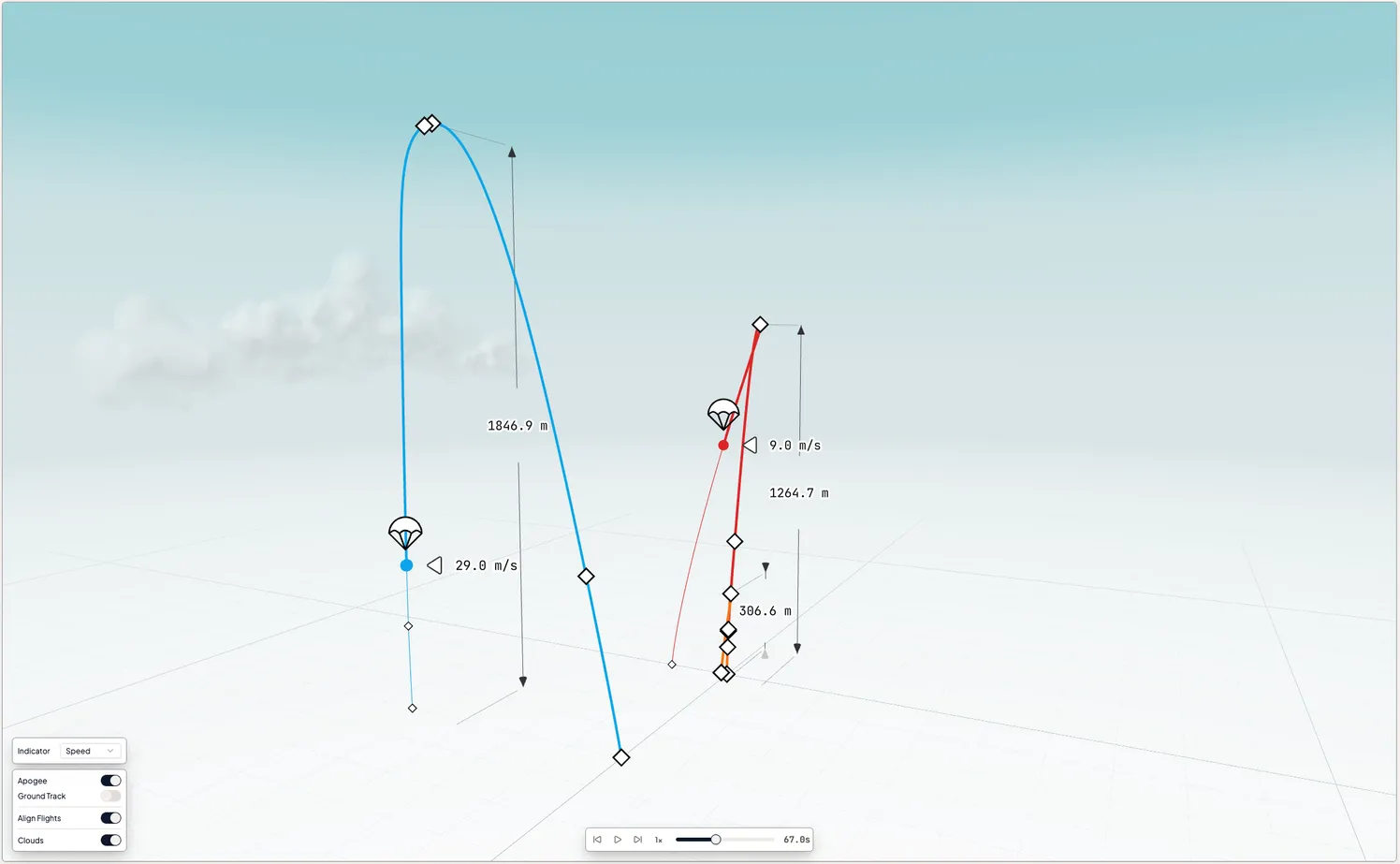
A comparison can include up to five flights. Each flight keeps the same color in the charts, 3D view and event table. Use the flight list to show or hide individual flights and check each flight's owner and access level. The main area can overlay their charts, play all trajectories in one 3D scene, or align burnout, apogee and deployment events in a table.
Choosing what to compare#
Any flights can share a comparison: your simulations, imported flight logs, other people's public flights. To compare a simulation with a real flight, import the flight computer log and add the recorded flight beside the prediction. Design-versus-design and motor-versus-motor comparisons work the same way. Add flights from your library as you go; the first flight anchors the comparison.
Time alignment#
Recorded data can include pre-launch samples, putting liftoff later in its timeline than in a simulation. Adjust each added flight's time offset in tenths of a second to line up liftoff, burnout or another reference point. The offset is saved, so you only need to align the flight once.
Sharing and access#
Flights follow the same privacy model as everything in ZenRockets: private by default, public when you say so. Use the share button beside the comparison title in the page header to Copy Link. If the comparison contains private flights you own, ZenRockets asks you to make them public first. The link opens the same set of flights read-only, while each flight keeps its original owner. Public flights also carry their attribution, and a flight linked to its rocket lets viewers jump from the trace to the design that flew it.